
If you are running a third-party AV/MDR solution in your environment, chances are you may not have setup Defender for Endpoint. In this guide I will explain how to onboard devices into Microsoft Defender for Endpoint (MDE) and run it in Passive Mode so it does not interfere with existing MDR software.
Before you begin you will need to ensure you have at least Microsoft Defender for Endpoint Plan 1 (Included in Microsoft 365 A3) and access to Intune Admin Centre with the Endpoint Security Manager role.
Step 1 – Enable the MDE Connector
The first step is to enable the Microsoft Defender for Endpoint Connector.
Head to Intune Admin Centre > Endpoint Security > Microsoft Defender for Endpoint
If you have not already set this up before, it’s likely to show the “connection status” as unavailable. If it shows as Available, skip the next instruction.

To make this available hear to Microsoft Defender Security Center > System > Settings > Endpoints
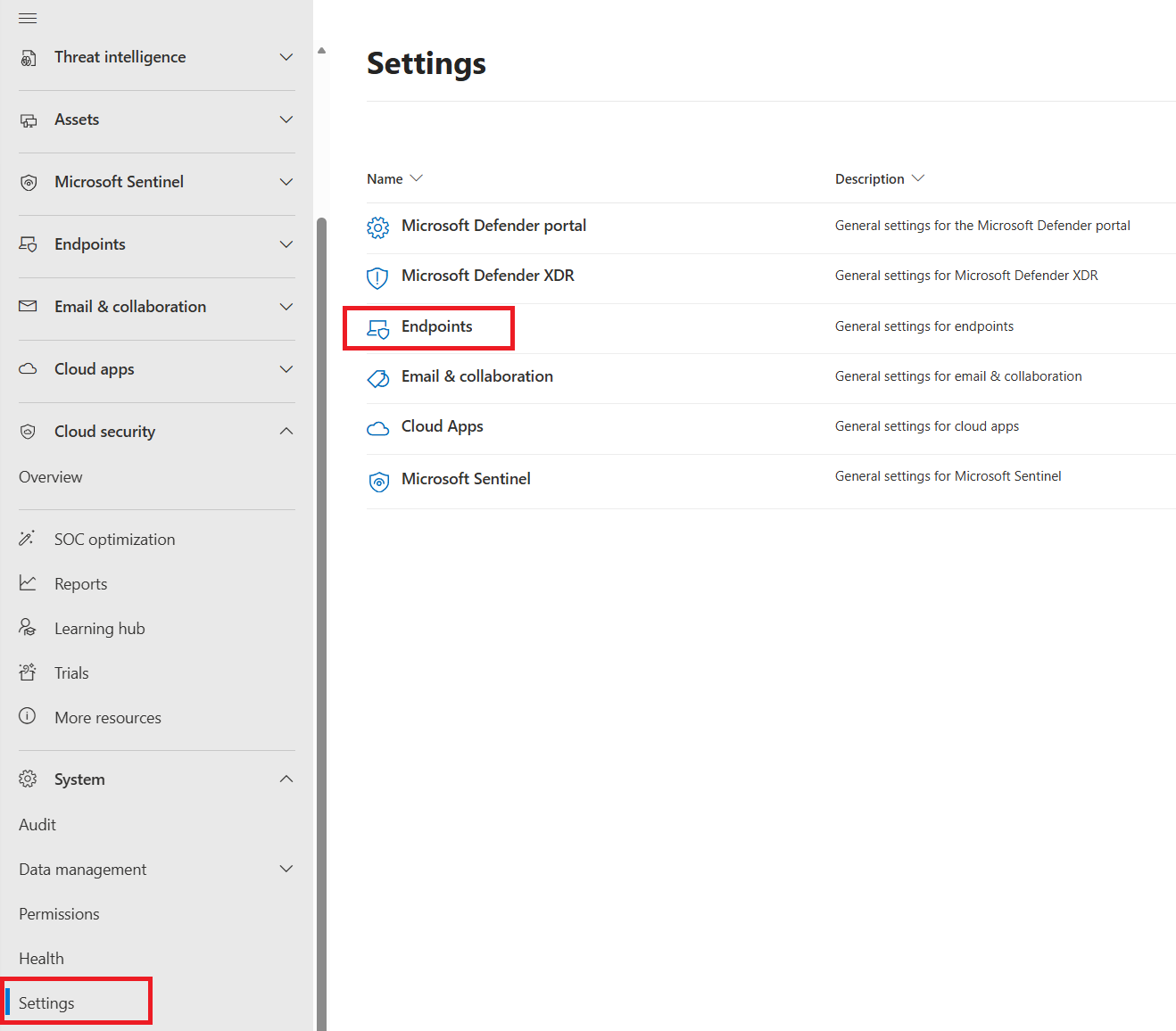
Then under Advanced Features scroll down to Microsoft Intune Connection

Enable this.

Return to the Intune Admin Centre The Connection should now show as available.

To turn this to Enabled head back to Intune Admin Centre > Endpoint security > Microsoft Defender for Endpoint.
Under Compliance Policy Evaluation enable Connect Windows devices version 10.0.15063 and above to Microsoft Defender for Endpoint.
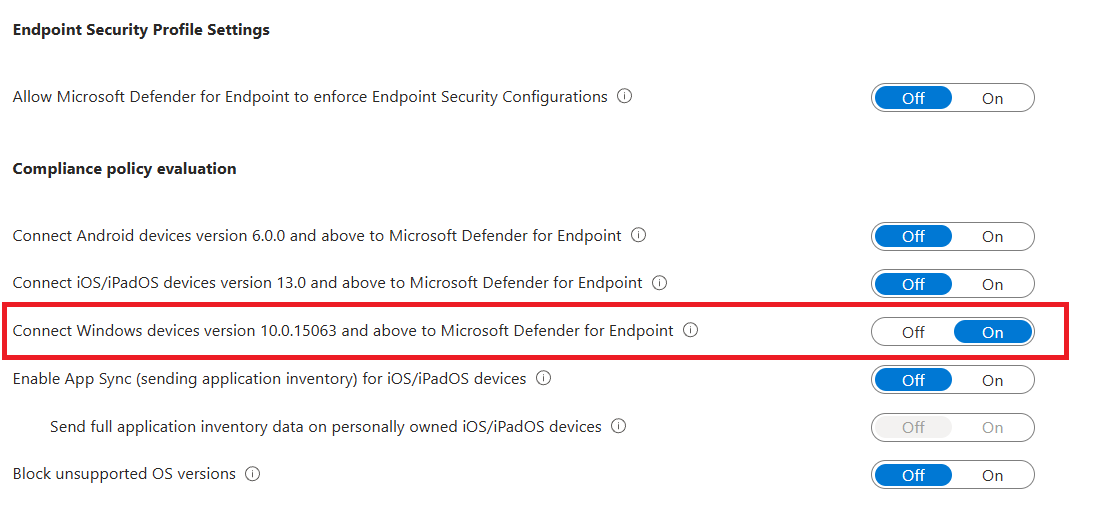
Click Save.
The Connection Status should now be Enabled

Step 2 – Onboard Devices
Now the Microsoft Defender for Endpoint connector is enabled, its time to onboard our first device(s).
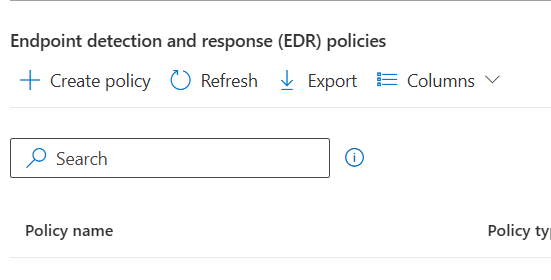
In Intune, open Endpoint security > Endpoint detection and response > Summary
Click + Create Policy
Platform: Windows
Profile: Endpoint detection and response
Give it a Descriptive name e.g Defender for Endpoint Onboarding.
Set Microsoft Defender for Endpoint client configuration package type to Auto From Connector
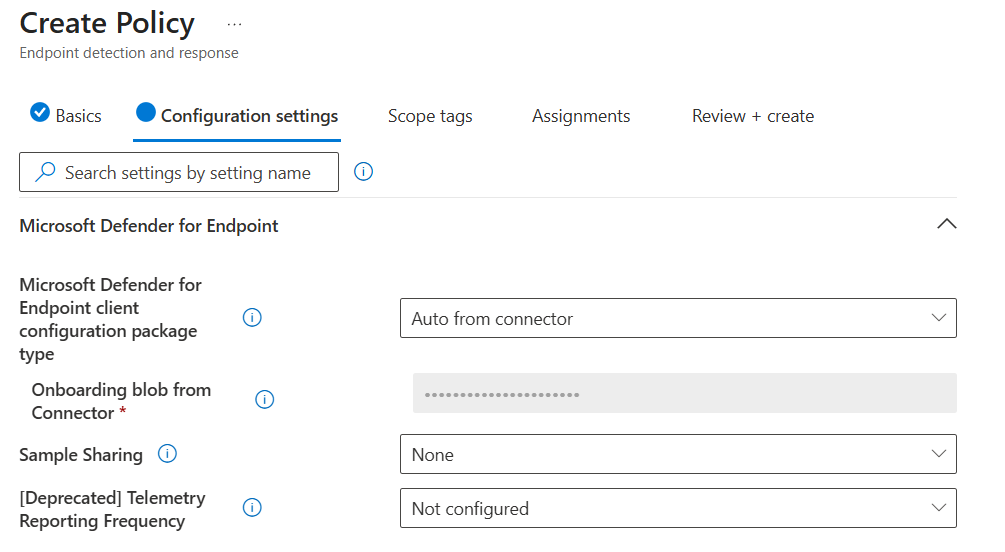
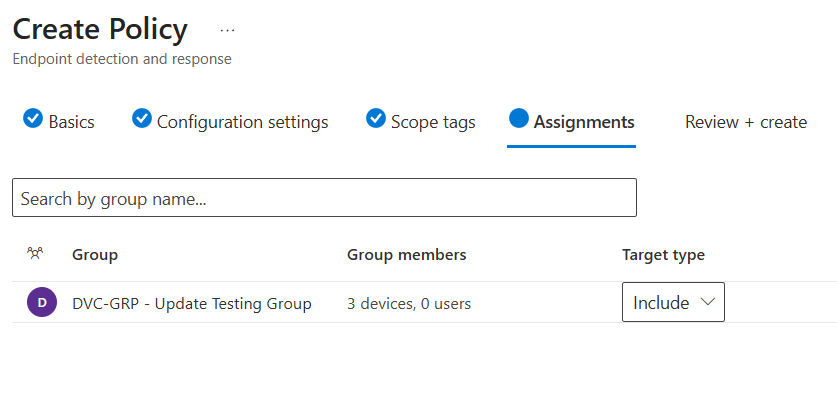
Under Assignments, apply this to your Testing Group (or All Devices if you like to live life on the edge)
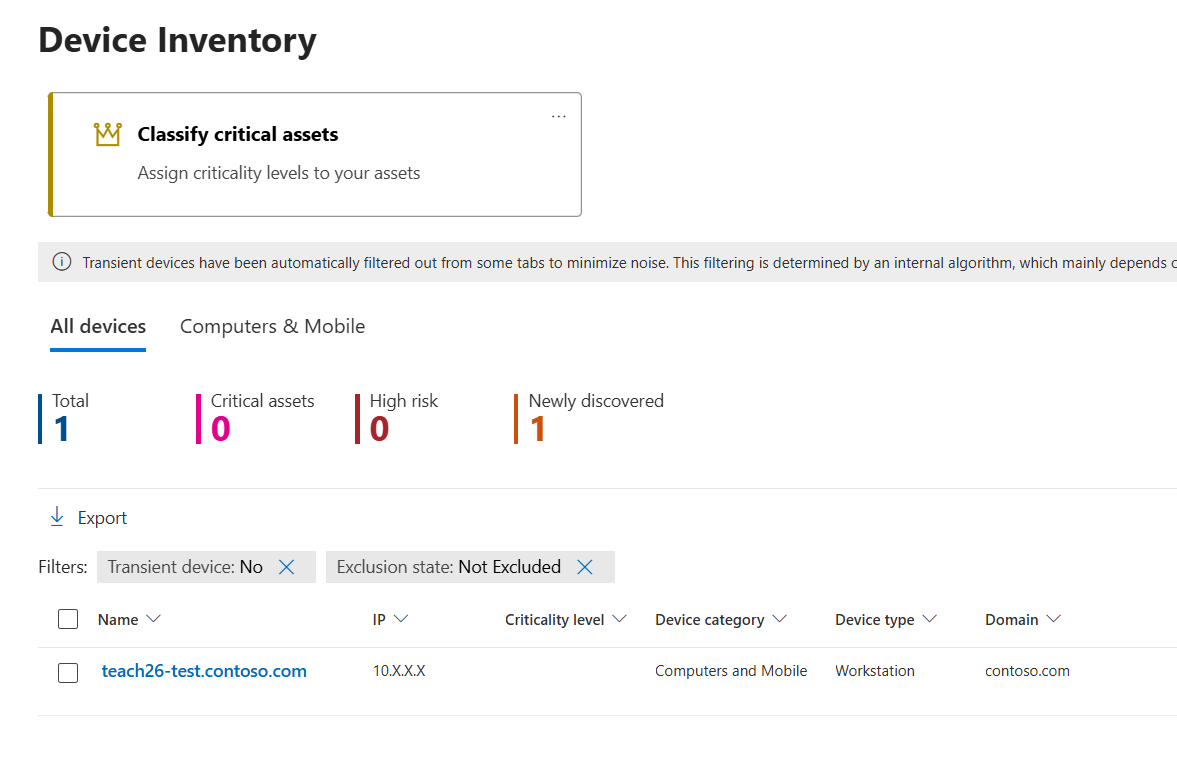
After 30 mins or so, your device(s) should now show in Defender.
Verify this by going to Microsoft Defender Security Center > Assets > Devices
If you already use a third party AV/MDR solution, Defender will honour this and automatically stay in passive mode.

#EdTech Network Manager, experienced in Microsoft 365, Server 2019, Intune, SCCM and anything inbetween.