
Unless you’ve been living under a rock, you’ve probably heard about the secure boot certificates that are starting to expire in June 2026.
Secure Boot helps ensure that your device starts using trusted software. The Microsoft Secure Boot certificates originally issued in 2011 begin expiring in June 2026. To maintain protection against new boot‑level threats, Microsoft is updating devices with a new set of 2023 certificates. Most devices will receive these updates automatically, but some systems may require additional firmware updates.
For most new devices, the certificate will have updated quietly in the background or even come installed when you bought them. But for some older devices, they may be missing the 2023 certificate, leaving them vulnerable when the old certificates expire.
Devices won’t just suddenly stop working, and they will still continue to receive security updates for windows and related software as normal, but they will be unable to receive vulnerability fixes for the early boot environment, such as BitLocker bypass mitigations or Secure Boot revocations. While this is not the end of the world, it may mean schools are unable to meet compliance with relevant security policies, frameworks and DFE standards if security updates cannot be installed.
Check your devices Secure Boot Status
The first thing you should do is check your devices, getting a clear picture of which PC’s may be effected, and if secure boot is actually enabled. To do this on individual devices, simple open an elevated PowerShell window and use the following cmdlet.
([System.Text.Encoding]::ASCII.GetString((Get-SecureBootUEFI db).bytes) -match 'Windows UEFI CA 2023')If this returns False then your device does not have the 2023 certificate in the Secureboot DB.
This is fine for odd devices, but if you are the manager of a school or a large organisation, you will need a better way to manage this. Microsoft has a Secure Boot Status report that can be accessed in Intune by navigating to Reports > Windows Autopatch > Windows Quality Updates > Secure Boot Status Report but in my testing, I’ve found this to be unreliable and doesn’t actually work.
I have created my own secure boot status script utilising Power Automate and PowerShell to create a handy dashboard containing Device Name, Make, Model, Bios Version, Secure Boot Status, Certificate Version and Compliance Status.
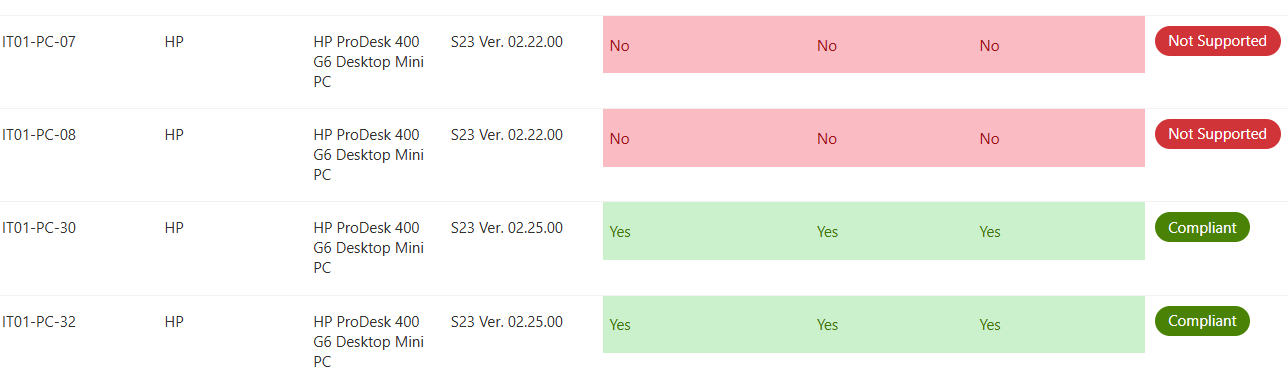
Update ‘Not Supported’ Devices
If your device is showing Not Supported its likely that Secure Boot is turned off on the device (this was common for MDT/SCCM installs). Choose a test device, enter the BIOS, Security > Secure Boot Configuration and enable Secure Boot.
The device should now change to at risk next time it checks in,
Update At Risk Devices
Now you have an overview of which devices need attention, its time to get your at risk devices updated with the 2023 UEFI CA. The following steps will outline how to complete the process for HP Prodesk 400 G6 devices however the process should be very similar on other HP devices and other manufacturers.
Step 1 – Ensure the affected devices have the latest BIOS update.
Ensure your devices have the latest BIOS update installed. According to my Dashboard, the at risk devices are on BIOS version S23 V02.22.0. According to HP, The latest Driver available to download online is S23 V02.25.0 (Feb 2026) I have noticed often the latest BIOS is available from the Machine itself, HP website and Windows Update are considerably behind.
Step 2 – Enable Secure Boot Update wither via Intune or GPO.
!! Warning !! – If you have Bitlocker enabled, you will more than likely be prompted for the recovery key. ( I have added a new guide to get keys in bulk from Intune if you hit this issue read my other article How to extract Bitlocker Encryption Keys in bulk from Intune.)
For Intune create a new Configuration Policy > Settings Picker > Search for “Secure Boot”
- Enable Secure Boot Certificate Updates > Enabled
- Configure Microsoft Update Managed Opt In > Enabled
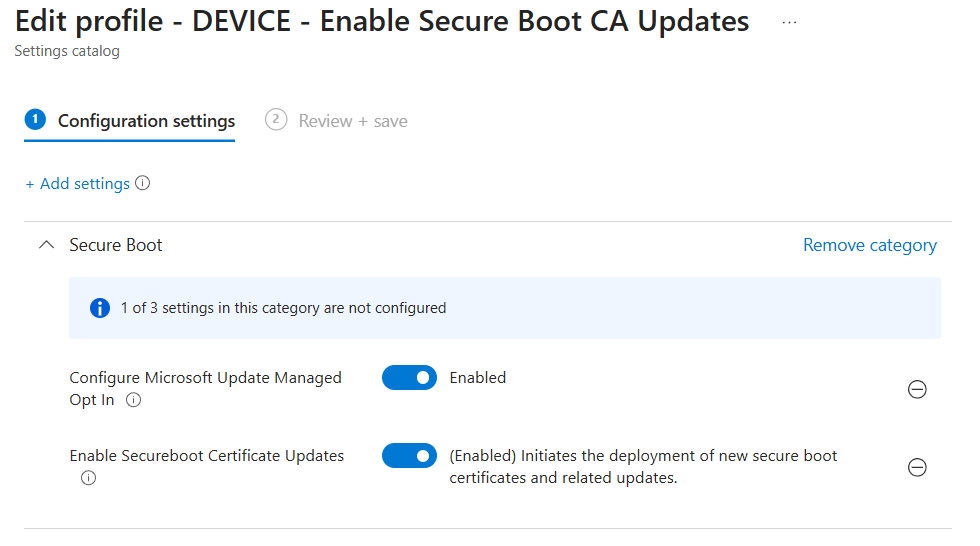
For GPO, ensure you have the latest ADMX templates create a new policy
Computer Configuration > Administrative Templates > Windows Components > Secure Boot
Configure:
- Enable Secure Boot Certificate Deployment > Enabled
- Configure Microsoft Update Managed Opt In > Enabled
Step 3 – Enable CA 2023 support in the BIOS.
For us this was the reason devices were not showing as compliant
Open the BIOS, head to Security > Secure Boot Configuration
You will now see 3 additional options, ensure these are ticked.
- Windows UEFI CA 2023
- Microsoft Option ROM UEFU CA 2023
- Microsoft UEFI CA 2023
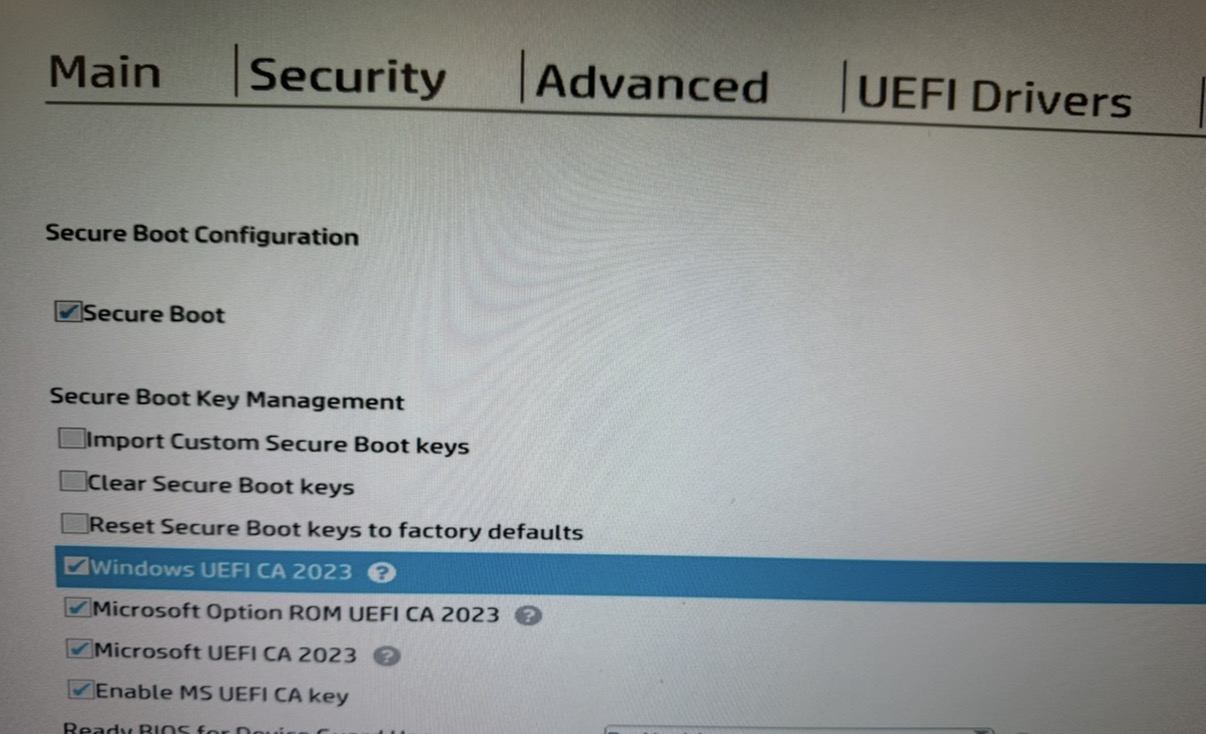
Press F10, save and exit. Your machines should now contain the 2023 CA.
You can confirm by running
([System.Text.Encoding]::ASCII.GetString((Get-SecureBootUEFI db).bytes) -match 'Windows UEFI CA 2023')This should now return True

#EdTech Network Manager, experienced in Microsoft 365, Server 2019, Intune, SCCM and anything inbetween.