
If you were an early adopter of Microsoft Teams, particularly if you were forced to adopt it during Lockdown, you may have found yourself with a mismatch of legacy Teams clients that simply refuse to disappear. Teams, Teams (Classic), Teams (New),Teams (Machine Wide Installer), Teams (For Work and School), sound familiar? You’re not alone.
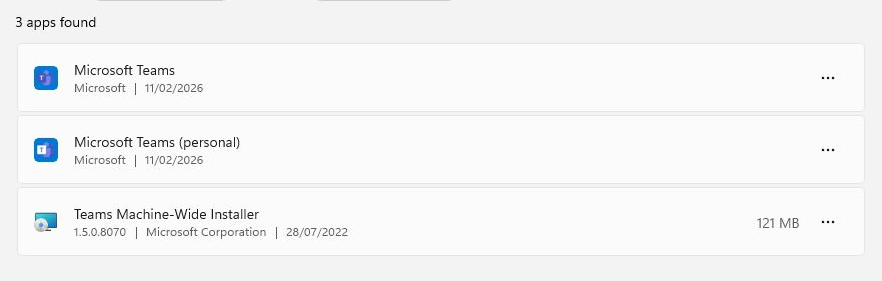
The cumbersome install process of the legacy clients and their inability to automatically update has left many schools with Microsoft Teams lingering in places you wouldn’t expect. Between the Machine-Wide Installer, per-user installs buried in AppData, provisioned AppX packages, and Windows 11’s consumer Teams components, simply clicking “Uninstall” rarely fully removes it.
I’m fortunate enough to have replaced most of the PCs which were plagued with the ‘Old Teams’ during our refresh cycles, but there was one classroom where the numerous Teams clients were causing issues in class.
If this sounds like your school or business, I’ll walk you through how to completely and cleanly remove all legacy Teams components from a Windows device using the script below.
# ===============================
# TEAMS FULL REMOVAL SCRIPT
# Run as SYSTEM (PDQ recommended)
# ===============================

Write-Host "Stopping Teams processes..."
Get-Process -Name "*teams*" -ErrorAction SilentlyContinue | Stop-Process -Force

# --------------------------------------------------
# Remove Classic Teams Machine-Wide Installer
# --------------------------------------------------
Write-Host "Removing Teams Machine-Wide Installer..."

$machineWide = Get-WmiObject -Class Win32_Product | Where-Object {
    $_.Name -like "*Teams Machine-Wide Installer*"
}

foreach ($app in $machineWide) {
    $app.Uninstall()
}

# --------------------------------------------------
# Remove Classic Teams from ALL user profiles
# --------------------------------------------------
Write-Host "Removing per-user Teams installs..."

$users = Get-ChildItem "C:\Users" -Directory | Where-Object {
    $_.Name -notin @("Public","Default","Default User","All Users")
}

foreach ($user in $users) {

    $teamsPath = "$($user.FullName)\AppData\Local\Microsoft\Teams"
    $updateExe = "$teamsPath\Update.exe"

    if (Test-Path $updateExe) {
        Write-Host "Uninstalling Teams for $($user.Name)"
        Start-Process $updateExe -ArgumentList "--uninstall -s" -Wait
    }

    if (Test-Path $teamsPath) {
        Remove-Item $teamsPath -Recurse -Force -ErrorAction SilentlyContinue
    }
}

# --------------------------------------------------
# Remove New Teams (Work or School)
# --------------------------------------------------
Write-Host "Removing New Teams (Work/School)..."

Get-AppxPackage -AllUsers *MSTeams* | Remove-AppxPackage -AllUsers -ErrorAction SilentlyContinue

Get-AppxProvisionedPackage -Online | Where-Object {
    $_.DisplayName -like "*MSTeams*"
} | Remove-AppxProvisionedPackage -Online -ErrorAction SilentlyContinue

# --------------------------------------------------
# Remove Teams Personal (Consumer)
# --------------------------------------------------
Write-Host "Removing Teams Personal..."

Get-AppxPackage -AllUsers *MicrosoftTeams* | Remove-AppxPackage -AllUsers -ErrorAction SilentlyContinue

Get-AppxProvisionedPackage -Online | Where-Object {
    $_.DisplayName -like "*MicrosoftTeams*"
} | Remove-AppxProvisionedPackage -Online -ErrorAction SilentlyContinue

# --------------------------------------------------
# Remove leftover registry uninstall entries
# --------------------------------------------------
Write-Host "Cleaning registry..."

$uninstallPaths = @(
"HKLM:\Software\Microsoft\Windows\CurrentVersion\Uninstall",
"HKLM:\Software\WOW6432Node\Microsoft\Windows\CurrentVersion\Uninstall"
)

foreach ($path in $uninstallPaths) {
    Get-ChildItem $path | ForEach-Object {
        $displayName = (Get-ItemProperty $_.PsPath -ErrorAction SilentlyContinue).DisplayName
        if ($displayName -like "*Teams*") {
            Remove-Item $_.PsPath -Recurse -Force -ErrorAction SilentlyContinue
        }
    }
}

# --------------------------------------------------
# Remove leftover folders
# --------------------------------------------------
Write-Host "Removing leftover folders..."

Remove-Item "C:\Program Files (x86)\Teams Installer" -Recurse -Force -ErrorAction SilentlyContinue
Remove-Item "C:\Program Files\WindowsApps\MSTeams*" -Recurse -Force -ErrorAction SilentlyContinue

Write-Host "Teams cleanup complete."


### Un-comment This to install the latest Teams Client #####


# --------------------------------------------------
# Download Latest Teams Bootstrapper
# --------------------------------------------------

#$downloadUrl = "https://go.microsoft.com/fwlink/?linkid=2243204"
#$bootstrapper = "$env:TEMP\TeamsBootstrapper.exe"

#Invoke-WebRequest -Uri $downloadUrl -OutFile $bootstrapper

# --------------------------------------------------
# Install New Teams (Work or School)
# --------------------------------------------------

#Start-Process $bootstrapper -ArgumentList "-p" -Wait

#Write-Host "Teams installation complete."
If you wish to install the latest teams automatically, un-comment the lines above. I’d personally deploy teams with your current M365 Packages instead so they are on the same update channels.
The included PowerShell script is suitable for tools like PDQ Deploy and is designed to deal with instance, classic MSI installs, per-user remnants, and provisioned packages.
If you’re preparing to roll out the new Teams client or just remove the old one, this will save you a lot of frustration.

#EdTech Network Manager, experienced in Microsoft 365, Server 2019, Intune, SCCM and anything inbetween.