
After reading a great article about Updating Secure Boot Certificates via Intune from my pal Mark over Ctrl+Alt_Delete Tech Bits. I thought it would be best to check the status of my devices, seeing which devices are likely to cause me issues or may need a bit of extra supervision along the way.
After hours of messing about with the Secure Boot Status page, trying desperately to ‘see something’ it appears Microsoft have seemingly given up hope pulled the plug on the secure boot status page. In the last few days it seems to have disappeared with no idea on if its coming back!
Not to worry, i’ve created a tutorial below on how you can poll devices via intune, and import their status into a SharePoint List. This gives you instant data on if a device has SecureBoot Enabled, and if the 2023 Certficate is present.
Note: You will need Power Automate Pro Licence for this, but you can activate a 90-day free trial.
Step 1: Create SharePoint List
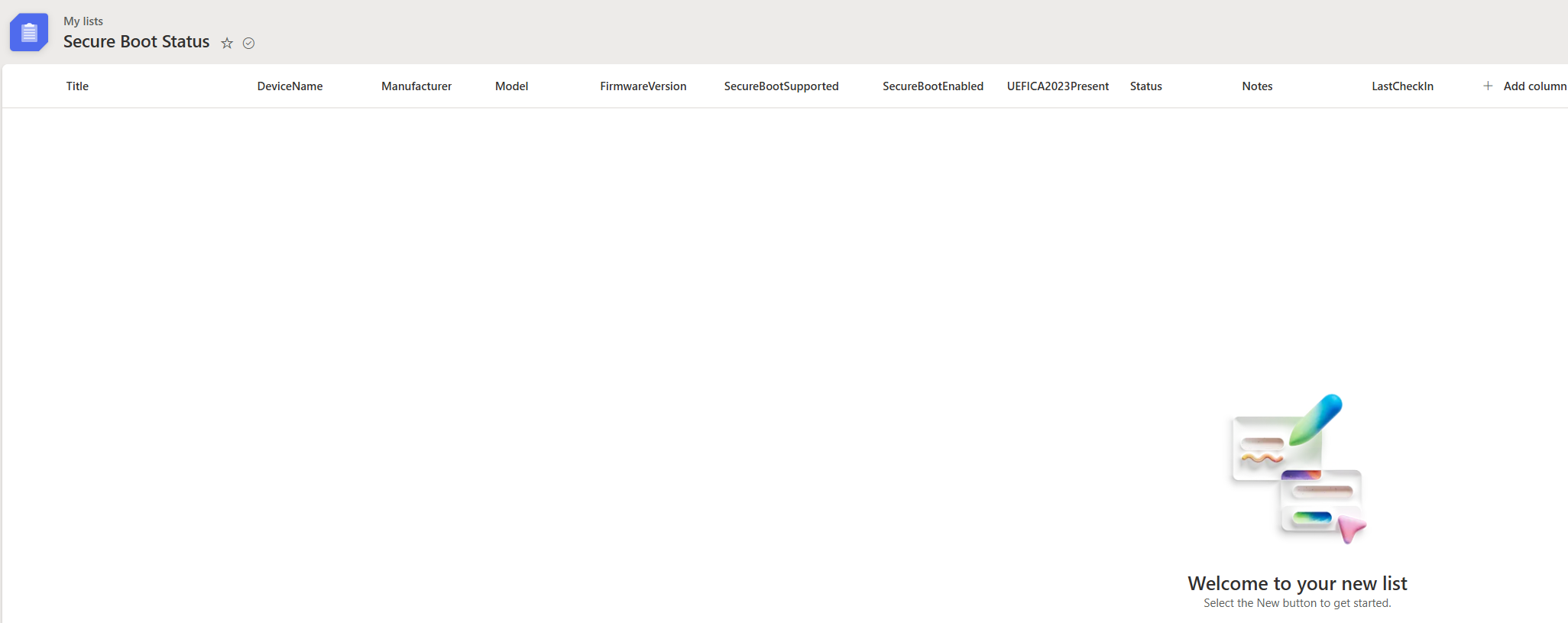
Create a SharePoint List called “Secure Boot Status”
Add the following Fields
| Column name | Type |
|---|---|
| DeviceName | Single line text |
| Manufacturer | Single line text |
| Model | Single line text |
| FirmwareVersion | Single line text |
| SecureBootSupported | Yes / No |
| SecureBootEnabled | Yes / No |
| UEFICA2023Present | Yes / No |
| Status | Choice (Compliant, At Risk, Not Supported) |
| Notes | Multiple lines of text |
| LastCheckIn | Date & Time |
Step 2: Create Flow
Go to Power Automate. Click Create Instant Cloud Flow
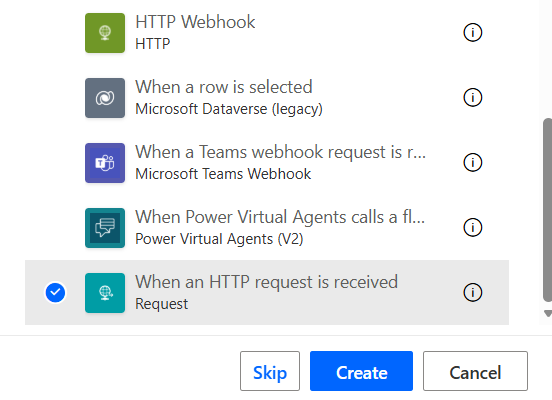
Call it something Descriptive like “SBS Logging” and select the trigger ‘When an HTTP request is received‘
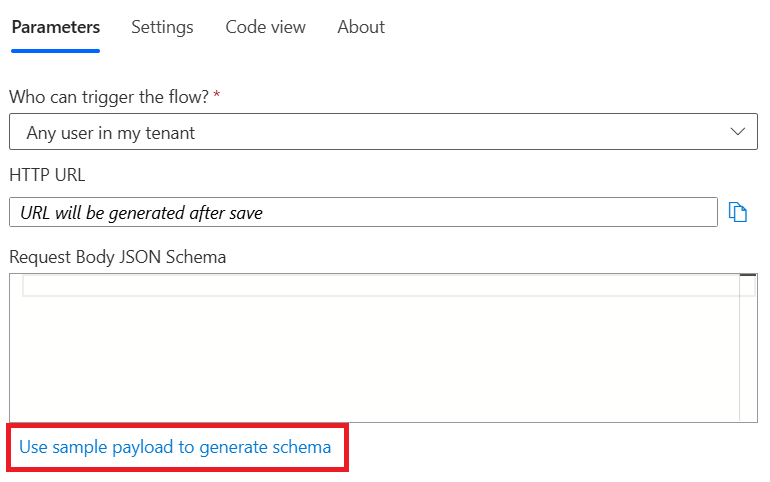
Open up the trigger properties and click Use Sample Payload To Generate Schema
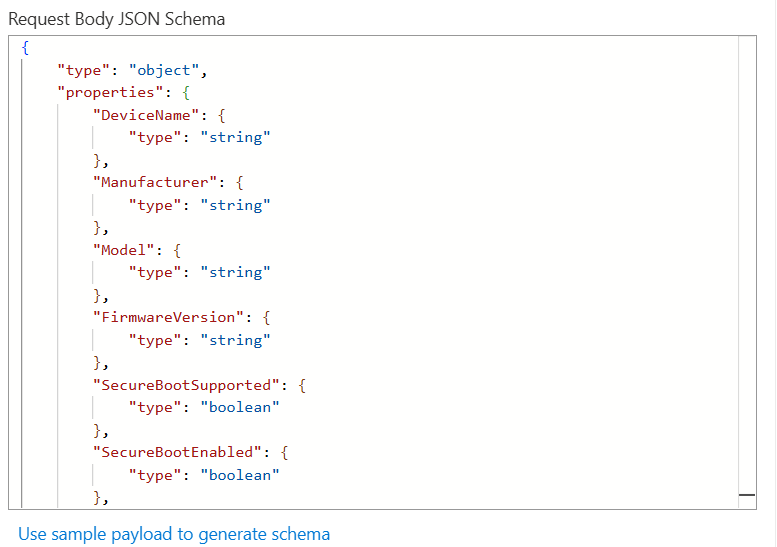
Paste in the following
{
  "DeviceName": "PC-01",
  "Manufacturer": "Dell Inc.",
  "Model": "Latitude 5420",
  "FirmwareVersion": "1.28.0",
  "SecureBootSupported": true,
  "SecureBootEnabled": true,
  "UEFICA2023Present": false,
  "Status": "At Risk",
  "Notes": "Microsoft UEFI CA 2023 missing",
  "Timestamp": "2026-02-09T14:10:22Z"
}
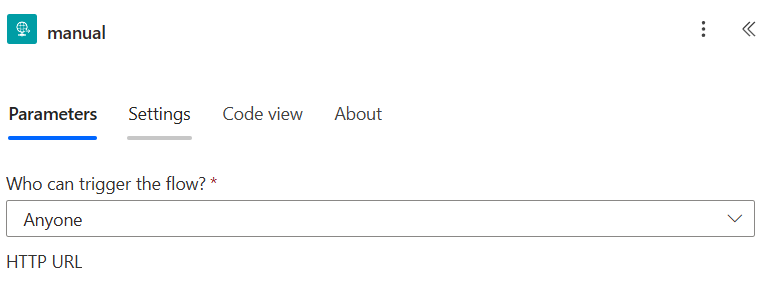
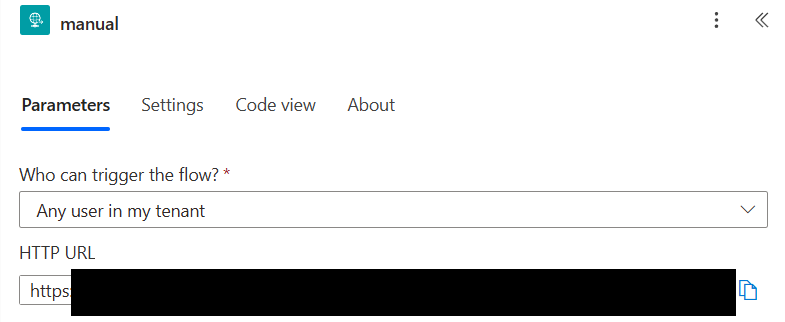
Change ‘Who can Trigger this flow‘ to anyone. (Don’t worry we will secure this with API key headers)
Add a Condition action after the Trigger.
In the left hand value, press / and add this expression.
triggerOutputs()?['headers']?['x-api-key']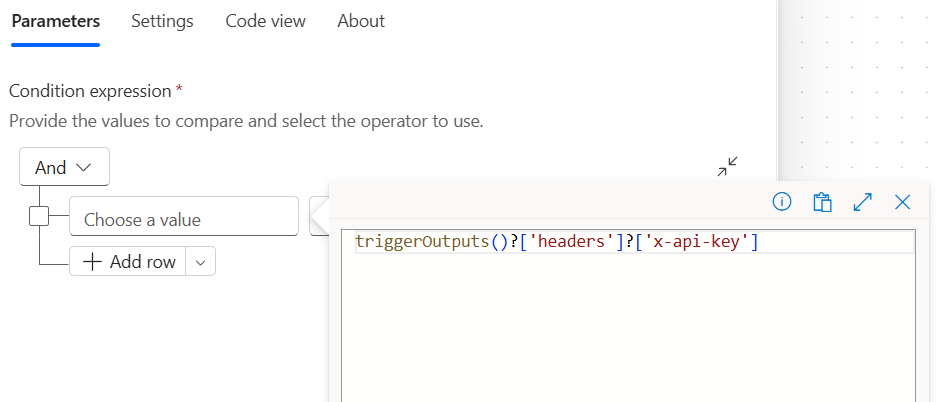
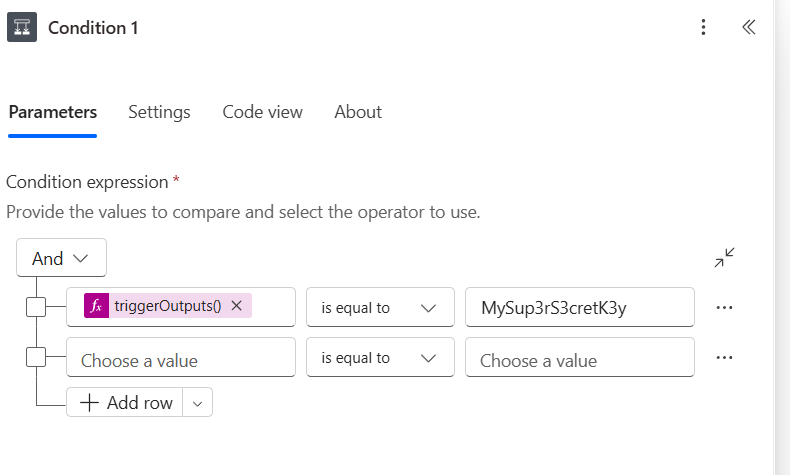
In the middle select is equal to and in the right value, add a unique long key (just dont forget to note it down)
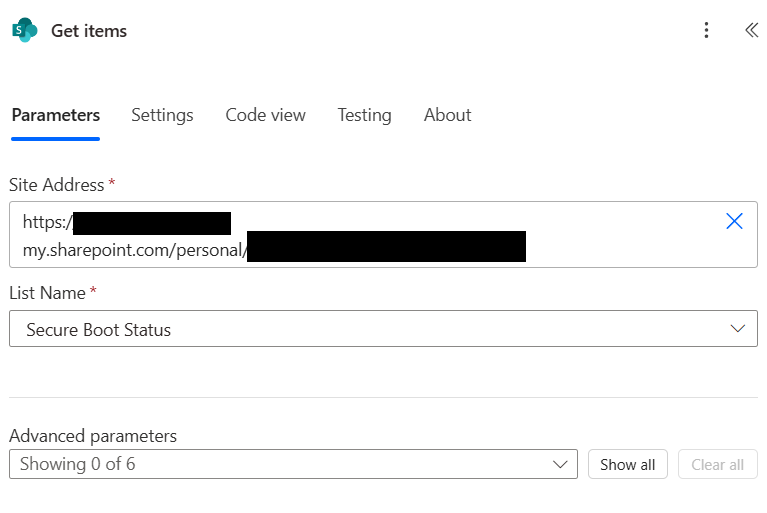
Add a Get Items (SharePoint) Action and connect it to your Sharepoint List you created in Step 1.
Under Advanced Parameters select Filter Query and add the following
DeviceName eq '@{triggerBody()?['DeviceName']}'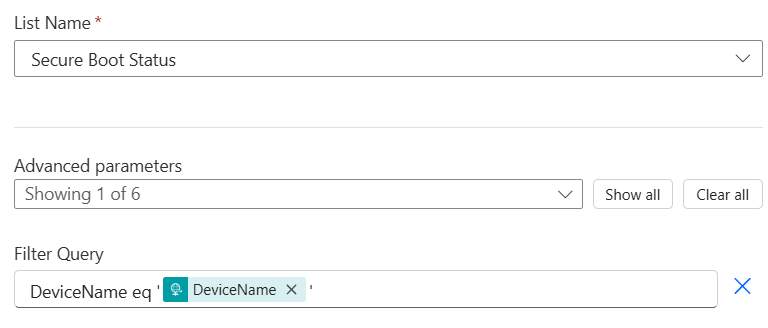
Now add a ‘Condition‘ to your Flow and add the following Expression.
Left Hand Value (Expression)
length(body('Get_items')?['value'])Middle Box Is Greater Than
Right Value 0
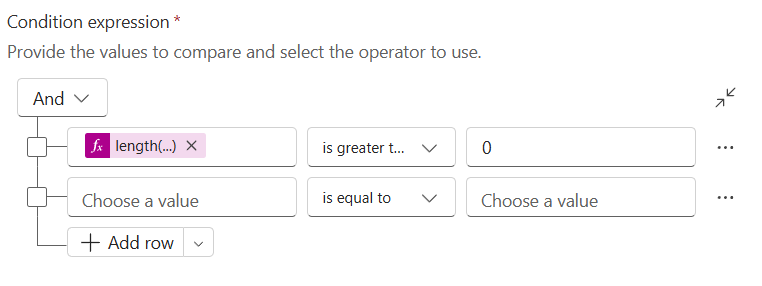
Under True add a new Update Item Action and Select the SharePoint List from Earlier. Use the ID from “Get Item” in the ID field.
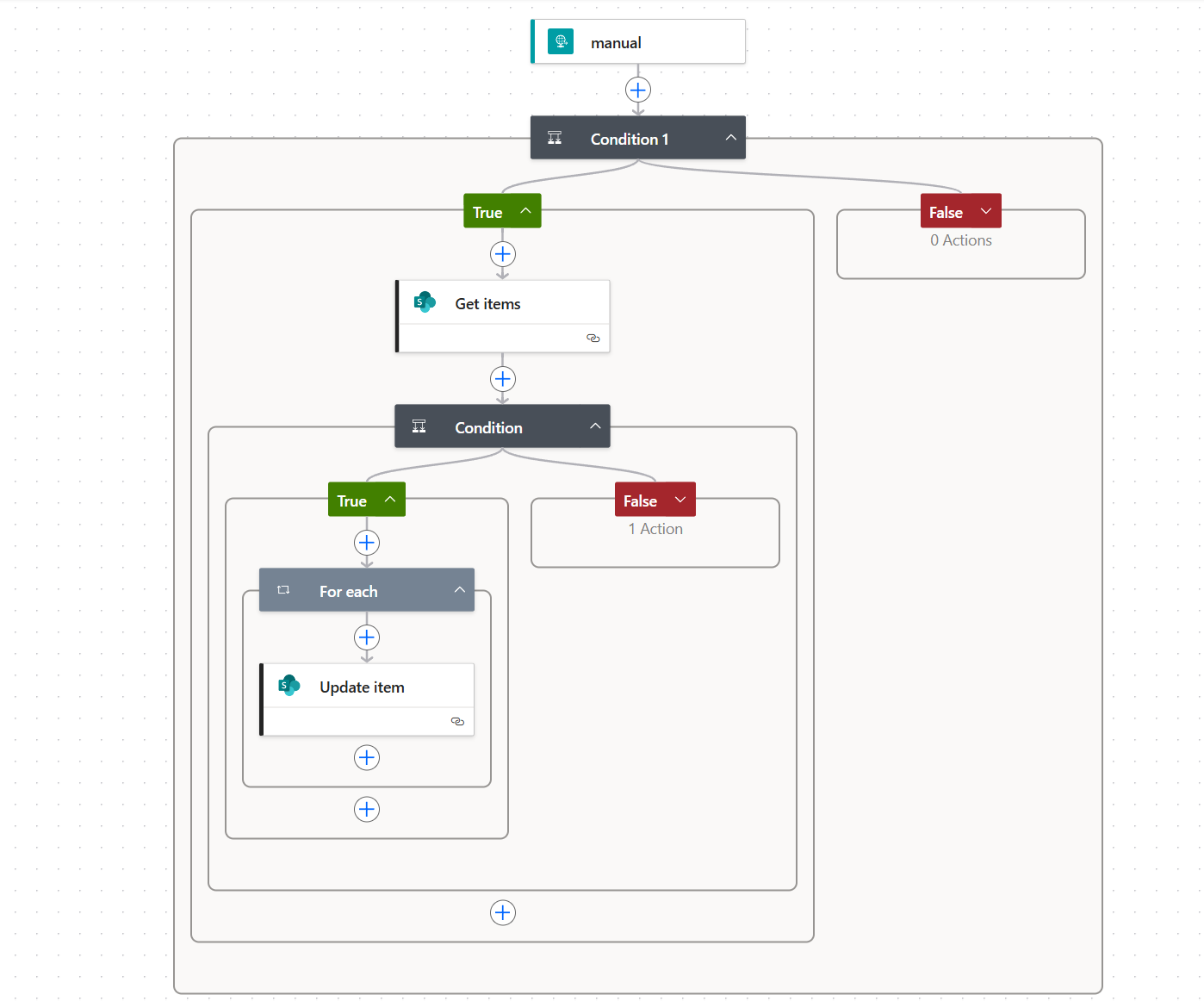
Fill in the rest of the fields using fields from the HTTP Trigger.
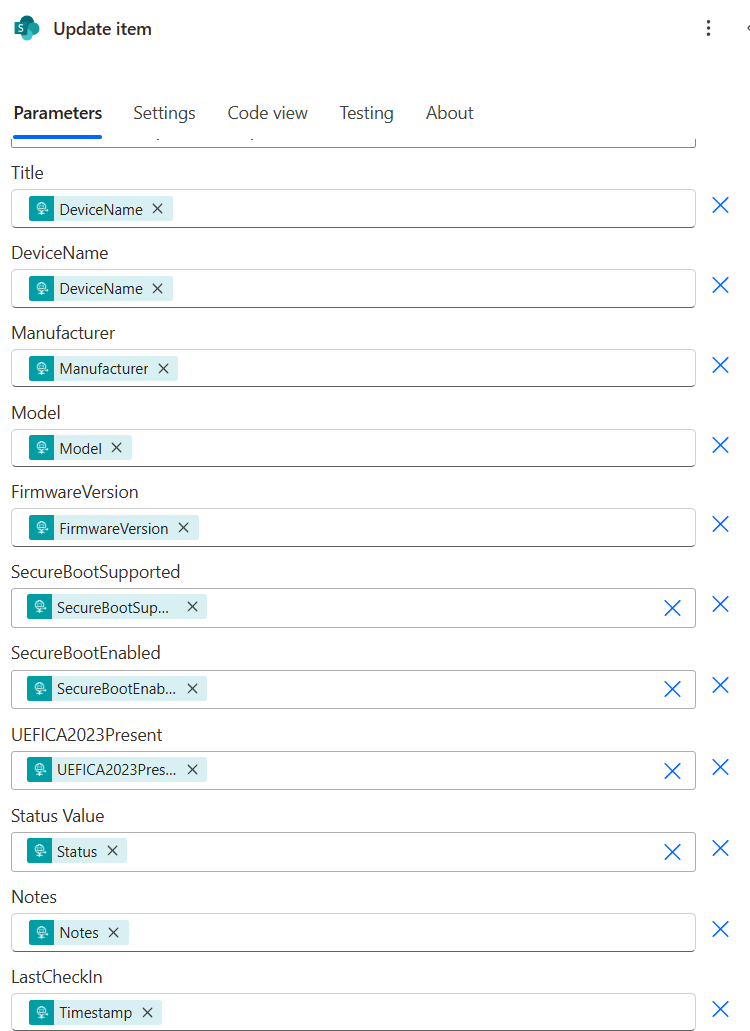
Repeat the process with the No branch but Create Item instead of update item.
Save your Flow.
Open up the Trigger Properties again and Copy the HTTP URL. Note this down.
Step 3: Create Intune Script
Copy the Powershell Script Below but ensure you replace the FLOW URL with the URL from the step above.
Updated: 11/02/2026 – Updated section for more reliable checking of 2023 CA
# =========================================
# Intune Secure Boot / UEFI Reporting Script
# =========================================

# Force TLS 1.2 for HTTPS requests
[Net.ServicePointManager]::SecurityProtocol = [Net.SecurityProtocolType]::Tls12

# --- Collect Device Info ---
$DeviceName = $env:COMPUTERNAME
$Manufacturer = (Get-CimInstance Win32_ComputerSystem).Manufacturer
$Model = (Get-CimInstance Win32_ComputerSystem).Model
$FirmwareVersion = (Get-CimInstance Win32_BIOS).SMBIOSBIOSVersion

# --- Check Secure Boot ---
$SecureBootSupported = $false
$SecureBootEnabled = $false
$UEFICA2023Present = $false

# Check if Secure Boot is supported
try {
    $SecureBootSupported = Confirm-SecureBootUEFI
} catch {
    $SecureBootSupported = $false
}

# If supported, check if enabled
if ($SecureBootSupported) {
    try {
        $SecureBootEnabled = (Confirm-SecureBootUEFI)
    } catch {
        $SecureBootEnabled = $false
    }

# Check if Microsoft UEFI CA 2023 is present
try {
    $UEFICA2023Present = $false

    $uefiDb = Get-SecureBootUEFI -Name db

    if ($uefiDb -and $uefiDb.Bytes) {

        # Convert byte array to readable string
        $dbString = [System.Text.Encoding]::ASCII.GetString($uefiDb.Bytes)

        if ($dbString -match "Microsoft.*2023") {
            $UEFICA2023Present = $true
        }
    }
}
catch {
    $UEFICA2023Present = $false
}
}

# --- Determine Status ---
if (-not $SecureBootSupported) {
    $Status = "Not Supported"
} elseif ($SecureBootEnabled -and $UEFICA2023Present) {
    $Status = "Compliant"
} else {
    $Status = "At Risk"
}

# --- Prepare Payload ---
$result = @{
    DeviceName = $DeviceName
    Manufacturer = $Manufacturer
    Model = $Model
    FirmwareVersion = $FirmwareVersion
    SecureBootSupported = $SecureBootSupported
    SecureBootEnabled = $SecureBootEnabled
    UEFICA2023Present = $UEFICA2023Present
    Status = $Status
    Notes = ""
    Timestamp = (Get-Date).ToString("yyyy-MM-ddTHH:mm:ssZ")
}

# --- Send to Power Automate Flow ---
#Your Flow HTTP URL
$FlowUrl = "https://your-url.com"  # Replace with your HTTP trigger URL

# API Headers (For Auth)
 $headers = @{
     "x-api-key" = "MySup3rS3cretK3y" # Replace with your API key
 }

try {
    $json = $result | ConvertTo-Json -Depth 5 -Compress

    Invoke-RestMethod `
        -Uri $FlowUrl `
        -Method Post `
        -Headers $headers `
        -Body $json `
        -ContentType "application/json" `
        -TimeoutSec 30

    Write-Output "Posted results successfully"
}
catch {
    Write-Output "Failed to post results"
    Write-Output $_.Exception.Message
}
Head to Intune Admin Centre > Devices > Windows > Scripts and remediations
Under Platform Scripts click New.
- Run as logged on credentials: No
- Enforce Script Signature Check: No
- Run script in 64 bit PowerShell host: Yes
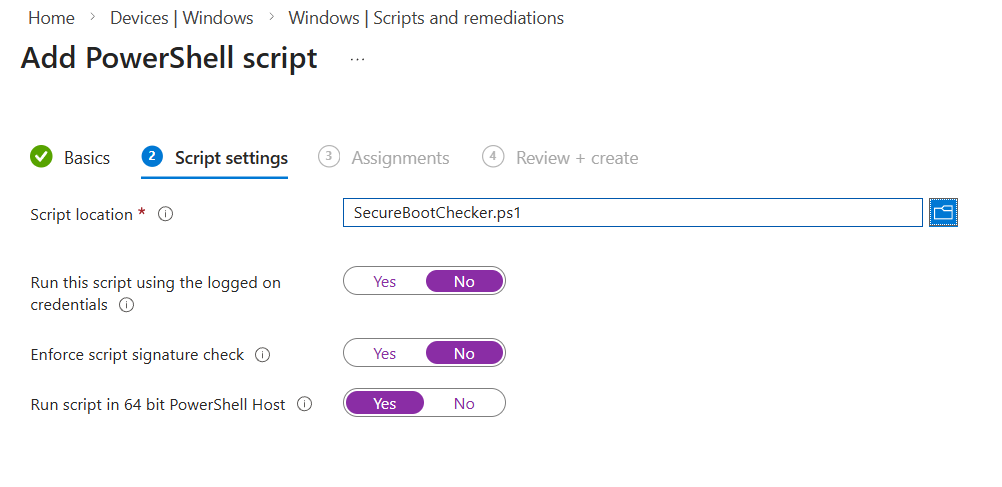
Upload the script above (containing your URL) and deploy to the required devices.
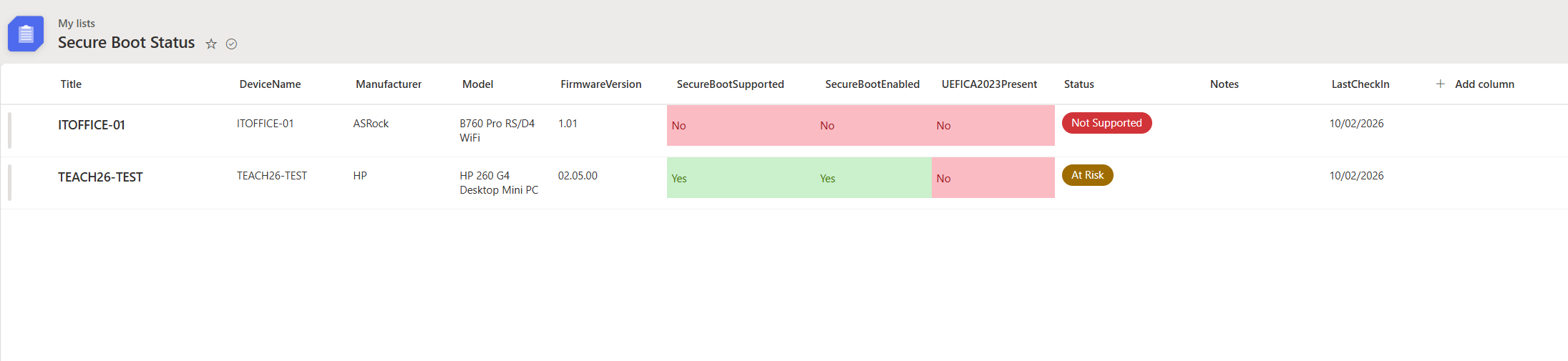
It may take up to an hour to start seeing results but as the script runs, you should see them starting to populate in your SharePoint List.

#EdTech Network Manager, experienced in Microsoft 365, Server 2019, Intune, SCCM and anything inbetween.
Hi Liam,
Thanks for sharing.
I’ve followed all of the steps and everything seems to be working well except the part that it should report back to the SP list.
No entries are there. I’ve checked the flow in Power Automate and it’s executed succesfully everyday. What should I check?
Hi Patrick, if it looks like the flow is running successfully, can you click in one of the runs and follow the flow down, under Update Item (or Create item if its the first run), what does it say under “Parameters” you should see some info like item/Manufacturer item/Model with a value. If the values are blank its not actually sending any data to the list
Hi Liam
I also have same issues, flow run successfully and i can see the values in the flow run, but the data is not uploaded to the SP list..
I have emailed you. Just to confirm, are you using the values from the HTTP Request (probably called “manual”) in the “Create Item” steps and not the idential named value from ‘Get Items’ Step?
Thanks for the great article. Struggling on the Condition 1 logic.
The execution of template action ‘Condition_1’ is skipped: the ‘runAfter’ condition for action ‘Get_items’ is not satisfied. Expected status values ‘Succeeded’ and actual value ‘Skipped’.
It doesn’t seem to reliably Get_items to see if the record exists already?!
Any ideas?
Hi Scott, have you added the triggerOutputs()?[‘headers’]?[‘x-api-key’] as an expression in the left hand field? You might have to click FX (Expression first). It sounds like it’s not even evaluating the expression just skipping it so nothing else is happening after that point
It looks like I have invalid characters in my API Key, once I remove the special characters it all started working?!
Thanks for your help and useful guide. We have used this for Active Directory joined machine as well using a GPO to create a Scheduled Task to run the script at System Startup.